
Instagram sponsored links: comment-to-DM and click statistics
Use Instagram automation to send sponsored-product links by DM. Choose a saved sponsored link or your link-in-bio in the follow-up DM, then review click statistics.
Published
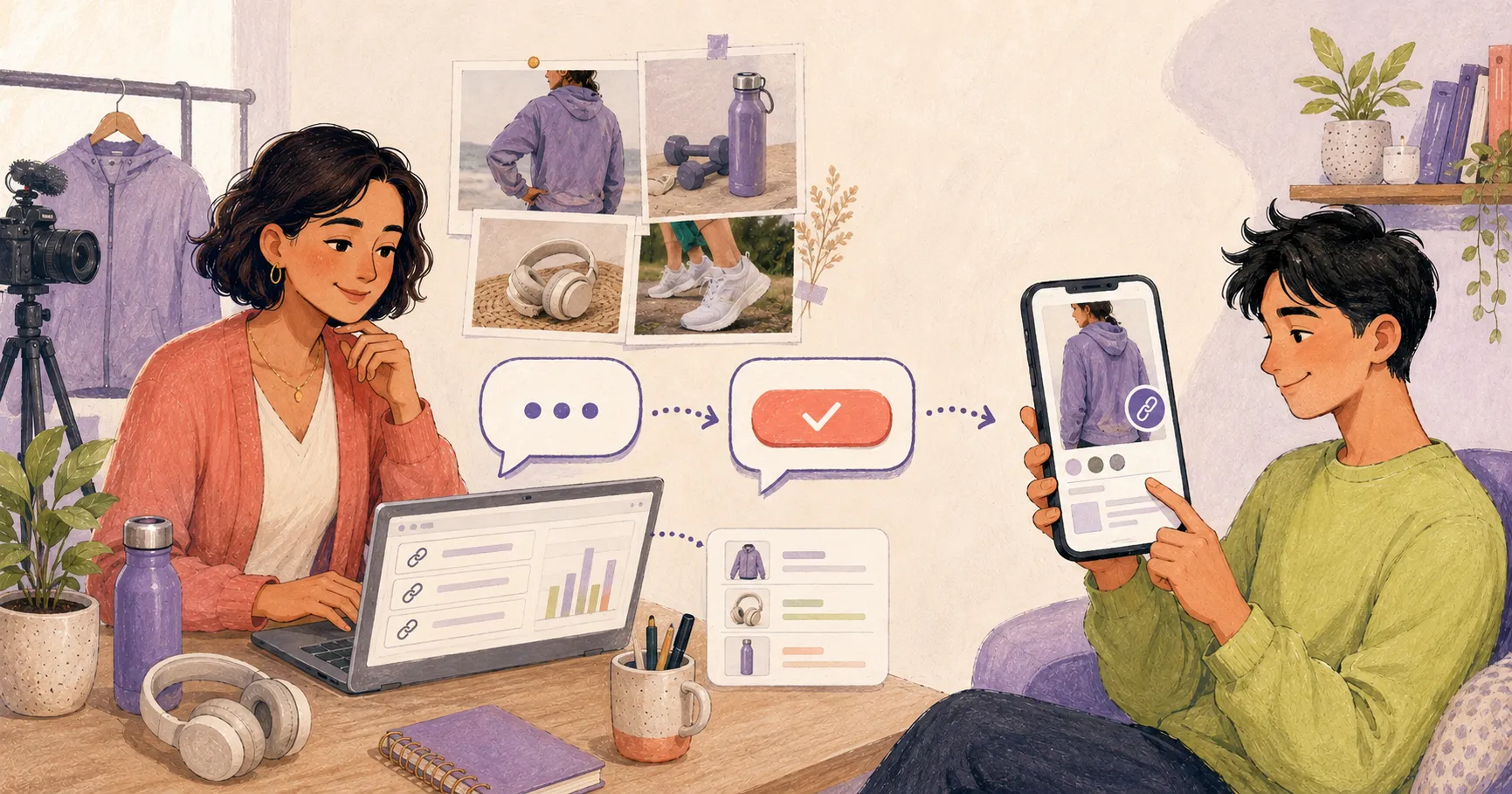
You tell followers to check the link in your profile, but someone replies, “Which link?” When you run several sponsored posts for jackets, headphones, and bottles, a profile link list does not always make the right product easy to find.
Meta announced support for up to five links in an Instagram profile. When you have more collaborations, or also need to share other content, a link-in-bio page can bring those destinations together. A longer collection still leaves the visitor with a task: finding the product from the post they just saw.
With Myven, you can send either a link that goes directly to one advertiser’s page or your link-in-bio page with several destinations. This guide covers automation that starts from a comment. It does not describe automatic answers to incoming DM inquiries.
Choose the destination before writing the DM
Send one product request directly to its advertiser
Imagine a sponsored post for a fictional Brand A running jacket. Someone asking about that jacket needs its product page, rather than a list that also contains headphones and bottles.
A sponsored link registered in Myven redirects to its advertiser URL without opening your link-in-bio page first. A redirect is an automatic move to another address. Choose that registered sponsored link in 5. Follow-up DM so the person who opens it in the DM reaches the intended advertiser page.
There is no need to copy the address from your public page or construct a tracking URL. Choose the registered product link in the follow-up DM link picker.
Share the link-in-bio page when browsing is the goal
For someone who wants to browse your recent collaborations, share your link-in-bio page instead. Choose My link-in-bio in the follow-up DM link picker.
The page gathers advertiser links and other content in one place, letting the visitor choose a destination. See the link-in-bio starter guide if you need to organise the page first.
Use a direct link for the product in a particular post, and the link-in-bio page for a collection. Choose according to what you promised to show the person.
1. Register the advertiser link on your link-in-bio page
- Open Link management in Profile and choose Add link, or Edit link for an existing entry.
- Give the link a recognisable internal name and public label. Set Target URL to the advertiser’s product page. For example, use
Brand A running jacket collaborationinternally andRunning jacket detailsas the public wording. - Check that the profile and link are Public, verify the product-page address, and save.
You can find the registered link in the workflow editor’s picker. If you want to share a collection instead, prepare your link-in-bio page so you can choose My link-in-bio rather than an individual product.
2. Match the comment workflow to the sponsored post
The current Myven comment workflow follows comment → public reply → opt-in DM → recipient button tap or reply → follow-up DM. An opt-in DM asks whether the person wants the information they requested.
- Open Auto response. If Instagram is not connected, complete Account connections first.
- Choose New workflow and a name such as
Brand A jacket comments. - Select Specific post, then use View my posts to choose the jacket collaboration. Separate post-to-link mappings help keep different advertisers’ products matched to their posts.
- Under Contains keyword, enter relevant words such as
jacket, outerwear. Keywords can be separated with commas. - Complete Reply text, Opt-in DM message, CTA button text, and Follow-up DM message using the examples below.
- In 5. Follow-up DM, select Choose from links, then click Choose from link-in-bio.
- In Choose a link-in-bio URL, find and select the registered link, such as
Running jacket details. Choose My link-in-bio if you want to show several products. - Check the selected link’s name and destination. If you selected your link-in-bio page, make the follow-up message describe the collection the recipient will see.
- Check Active and the entries, then save. The Save button becomes available when the required fields are complete. Check the pricing page for the current offering.
Use Enter URL directly for a different address
Use Choose from links to connect a link registered on your link-in-bio page. For a separately prepared address, switch to Enter URL directly and fill in Link URL. Choose the appropriate input mode rather than trying to edit an address while a saved link remains selected.
We recommend connecting a link from your link-in-bio page instead of sending the advertiser’s URL directly. When you connect a link from your link-in-bio page, Myven records statistics showing how many times it was clicked.
Copy-and-adapt sponsored-post messages
These examples describe a fictional running-jacket collaboration.
Comment prompt in the post
[Ad] Want the details of the jacket in this post? Comment ‘jacket’ and I’ll send the link.
Reply text
I’ll send you a DM about the jacket. Please check your messages!
Opt-in DM message
Would you like the details of the Brand A running jacket? Tap ‘Get jacket details’ below. If you cannot see the button, reply ‘jacket’ here.
CTA button text
Get jacket details
Follow-up DM — a direct advertiser destination
Here are the details of the Brand A running jacket you requested. The link opens the advertiser’s official page, where you can check colours, sizes, and purchase terms.
Follow-up DM — a link-in-bio collection
I’ve collected the products from my recent collaborations on my link-in-bio page. Open the link and choose the product you want to explore.
The button and message should explain what the link opens. W3C’s link-purpose guidance also says people should understand a link’s purpose from its text or surrounding context.
3. Check the entire route, from comment to destination
Use a separate Instagram account for checking and leave a new ‘jacket’ comment on the sponsored post. Look for the public reply and opt-in DM, then tap the button or reply to receive the follow-up. A non-follower may need to check DM Requests.
Reopen the saved workflow and check that 5. Follow-up DM retains the input mode and selected link. If you used Enter URL directly, check the saved address.
Finally, open the DM link and confirm that it reaches the intended advertiser and product. If you chose the collection route, it should open your link-in-bio page. Check the product and message as well as whether the link opens.
In Workflow statistics, select the relevant period, workflow, and account to inspect comment, reply, and DM processing records.
4. Review activity for each sponsored link
Choose a period in Engagement Overview and inspect Top Links. Registered sponsored links appear with the Storefront link category.
The value for that category adds together link clicks on the link-in-bio page and visits to the direct Myven redirect address. Visits through a Myven sponsored link sent in a DM are also eligible for this counter. Sending the advertiser’s original URL directly bypasses the Myven sponsored-link redirect counter. If the same Myven link is also shared on your profile or other channels, those interactions are counted together, combining clicks from DMs and other channels.
Processing takes time; a new interaction may not appear immediately.
Compare links over the same period and use the records to check unclear wording or incorrect destinations. The link-event guide explains how to read these signals in more detail.
Check again when the campaign changes
If a DM does not arrive, check the connected account, post, keywords, and whether the workflow is active. This workflow’s follow-up needs a recipient button tap or reply after the opt-in DM.
If you cannot find a link, check that the product is registered in Link management under the same Myven account. Search for its name and reopen the picker to check the list.
If a Myven link does not open, check that the profile and sponsored link are public and that the advertiser URL remains valid. A policy hold can also restrict the redirect. Hiding the link or making the profile private after a collaboration ends may stop a previously sent Myven link from opening, so check it after changes.
If you still need help, feel free to contact support.
Sources and scope
The five-profile-link example comes from Meta’s official feature announcement. This guide does not assume that external links are prohibited in every Instagram post format.
Meta’s private-reply rules allow one initial message for a post or reel comment within seven days, with follow-up messages limited to 24 hours after the recipient responds. Actual delivery can vary with account eligibility. Currently, you can manually reply in Myven DM Inbox within 24 hours of receiving a user’s DM. We are developing support to extend this manual reply window to seven days.
The link-selection instructions follow the interface structure and product source inspected on September 10, 2026. The redirect and statistics descriptions were checked against existing product source and tests. This is not a measured live-account Meta delivery or advertiser purchase-conversion case study.
View the Instagram carousel
You can also review the article’s key points in an Instagram carousel.
Sources
- Meta — Instagram profile links announcement ·
- Meta — Instagram API with Instagram Login: Private Replies ·
- W3C WAI — Understanding Link Purpose in Context ·
- Myven — Instagram comment workflow builder (sign-in required) ·
- Myven — Instagram workflow statistics (sign-in required) ·
- Myven — Profile link management (sign-in required) ·
- Myven — Analytics (sign-in required) ·